
Wi-Fi Import — Transfer Music from Computer to iPhone
Wi-Fi Import — Transfer Music from Computer to iPhone
OnePlayer's Wi-Fi Import lets you transfer music files from any computer to your iPhone over your local network. No USB cable or iTunes required — just a shared Wi-Fi connection and a web browser.
Step 1: Open the Wi-Fi Import Page
Make sure your iPhone and computer are connected to the same Wi-Fi network. Disable any VPN or proxy on both devices.
In OnePlayer, tap the ➕ button in the top-right corner of the home screen, or go to More → Wi-Fi Transfer.
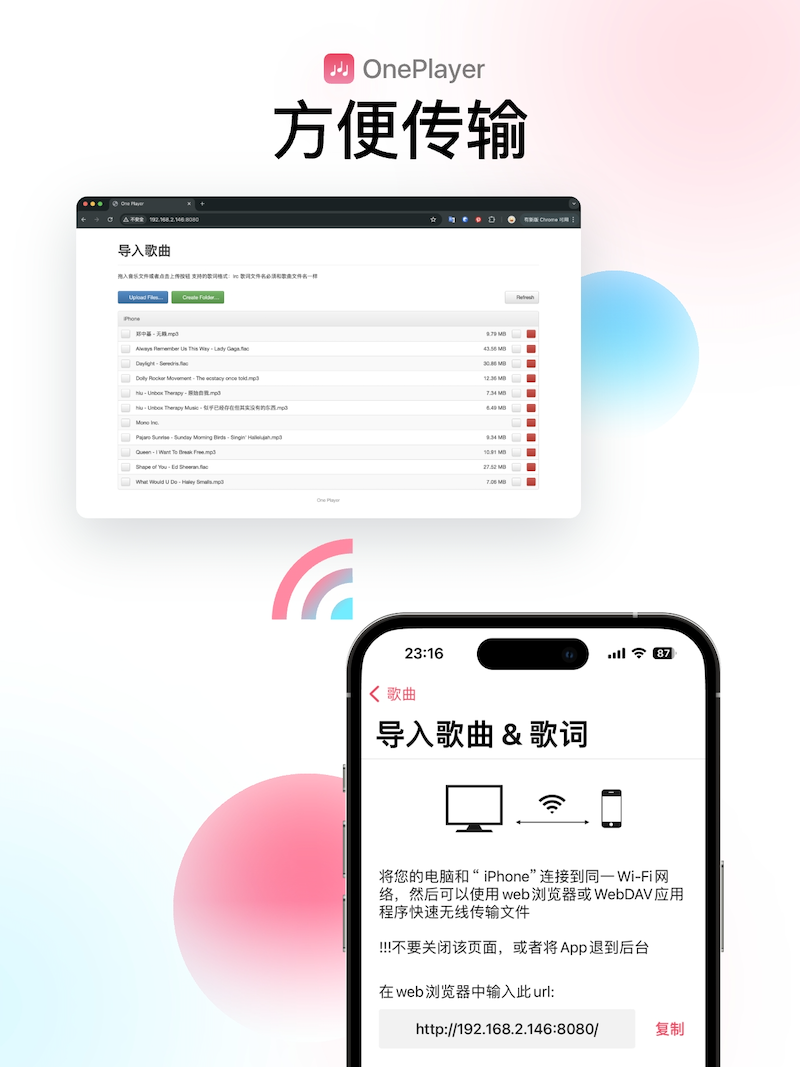
The app displays two URLs: a web URL (top) and a WebDAV URL (bottom).
Step 2: Open the URL on Your Computer
Copy the web URL and open it in any browser — Chrome, Safari, Edge, or Firefox all work.
Step 3: Transfer Your Music Files
On the web page, click the import button to select files, or drag and drop files directly onto the page. Supported formats include MP3, FLAC, AAC, WAV, AIFF, M4A, APE, OGG, Opus, DSD, and more.
Important: During the entire import process, keep OnePlayer on the import screen. Do not lock your phone, switch apps, or leave the page — this will disconnect the transfer.
Troubleshooting: Wi-Fi Import URL Won't Open
If the URL does not load on your computer:
- Confirm both devices are on the same Wi-Fi network (not just the same router — some routers isolate 2.4GHz and 5GHz bands)
- Disable VPN/proxy on both devices
- Check for typos — make sure you're using half-width characters, not full-width
- Ensure OnePlayer is still on the import screen on your phone
If none of these steps resolve the issue, try USB Cable Import as an alternative.